Section 2.1 — Fire-and-forget credential handling
Cloud credentials you enter in the portal are encrypted in your active session and used only for the current scan workflow. They are purged after the scan completes and are never written to the CloudSure database. Each provider dashboard shows a credential status badge: Credentials Ready or No Session Credentials.
Section 2.2
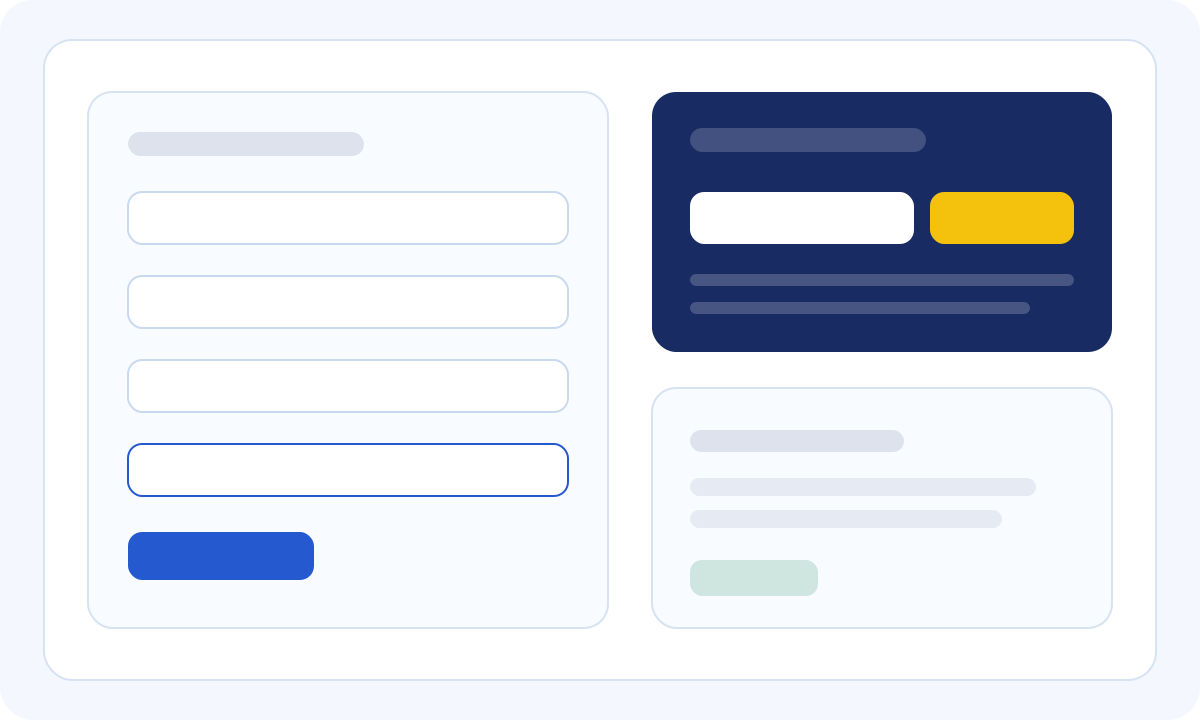
Configure credentials from Quick Actions
- Open the provider dashboard from the sidebar Cloud section (AWS, Azure, or GCP).
- In Quick Actions, locate the credentials card for that provider.
- Select Configure to expand the credential form.
- Enter the required fields and select Save Credentials.
- Use the adjacent Run Compliance Scan card to launch a scan once credentials are ready.
Example View
Section 2.3
AWS credentials and regional scanning
- Enter Access Key ID, Secret Access Key, optional Session Token, and a default region.
- Before running a scan, choose a Regulatory Compliance Framework from the dropdown.
- Set the Region to scan field beside Run Scan to override the region for that run.
- AWS scans target only the selected region for each run.
Section 2.4
Azure service principal
On the Azure dashboard, enter Tenant ID, Client ID, Client Secret, and Subscription ID. Optionally set a location scope label (for example, global). Choose a compliance framework, confirm the scope field, then run the scan.
Section 2.5
GCP service account
On the GCP dashboard, enter your Project ID and a service account JSON key (paste or upload). Optionally provide Organization ID or Folder ID. Choose a compliance framework, confirm the project scope, then run the scan.
Section 2.6 — Running a compliance scan
When you start a scan, a progress bar and status message appear on the dashboard. Scan numbers are tracked per organization (Scan #1, Scan #2, and so on). The sidebar Latest scan card mirrors the current job status. When a scan completes successfully, the Download PDF Report button appears in Quick Actions and findings populate on the dashboard.