Section 3.1
Dashboard widgets and compliance trends
- Compliance widgets include Overall risk, Compliance score, Compliant, Non-compliant, Resources reviewed, and Total findings.
- Widgets show deltas compared with your previous scan where available (for example, score change vs last scan).
- Click any widget to open the matching compliance detail view with additional filters and breakdowns.
- The compliance trend chart shows score history across recent successful scans for the active cloud provider.
- Scan numbers are tracked per organization so each tenant sees its own assessment sequence (Scan #1, Scan #2, and so on).
Example View
Section 3.2
Filtering and exploring findings
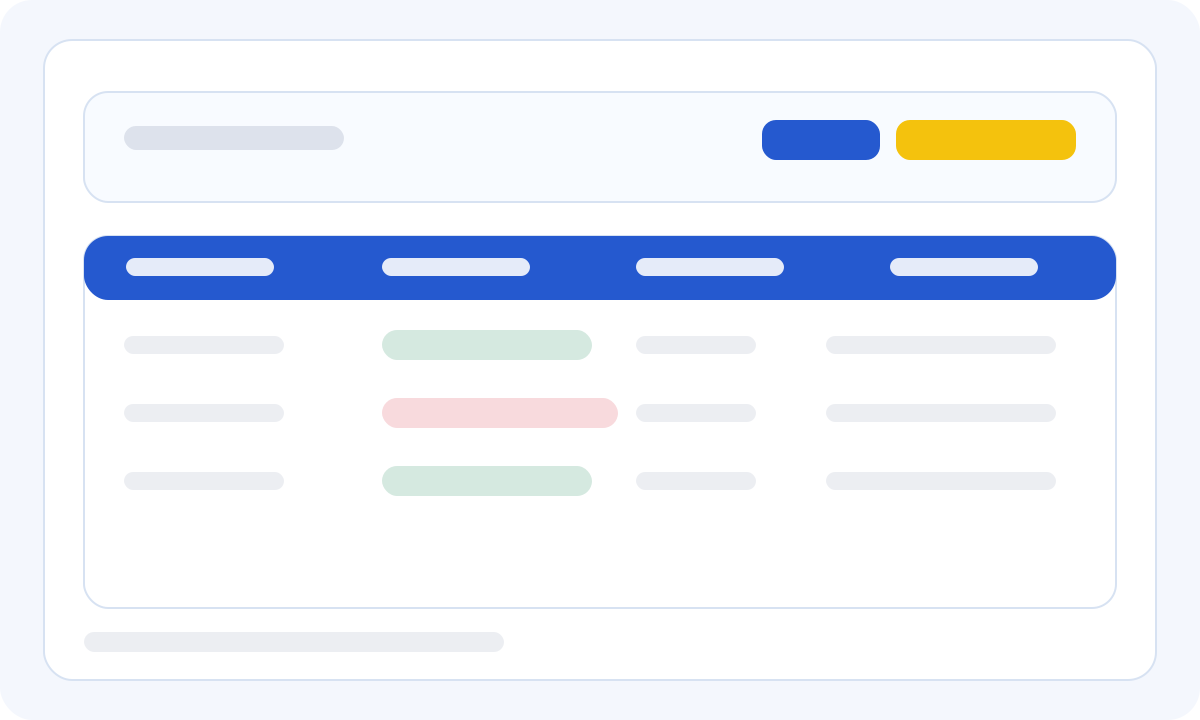
- The Latest Compliance Findings table lists control ID, resource, framework tags, region, status, and remediation guidance.
- Filter findings with All, Compliant, or Non-Compliant.
- Select View All to open the full compliance detail view with additional filters by severity, category, resource, and framework.
- Long findings lists use pagination controls at the bottom of the table.
- If a scan produced incomplete data, a Partial Report notice may appear above the findings table.
Section 3.3
Dashboard notifications
Use the notifications bell in the dashboard header to review scan completion and status alerts. Clear notifications when you are finished reviewing them.
Section 3.4
Downloading audit-ready PDF reports
After a scan completes successfully, the Download PDF Report button appears in Quick Actions. The report includes account or subscription details, scan scope, summary counts, framework coverage, detailed findings, and privacy and disclaimer notices for your organization.
Section 3.5
Remediation and re-scan best practice
Remediate non-compliant controls, rerun the scan for the same scope, and download a fresh PDF to document your improved posture for audits or internal review.